INFO: Software Cheat Sheets
Illustrator CS5: Offset Path
Cheat Sheet 20110924

Cheat Sheet 20110924
Use the Offset Path when you want to make a larger or smaller replica of your object.
Why not use the Scale Tool? Take a look:
Here's the Object:

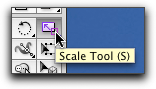
Double-click on the Scale Tool (S) in the Tools Panel to open the Scale Tool dialog box (see images below):
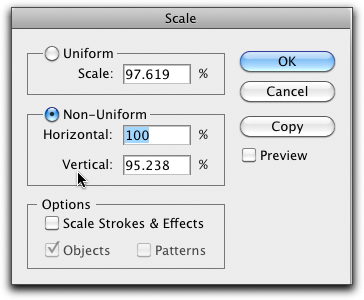
To make in inner outline – Scale was then set to 50% (and Copy was clicked) – and this was the result:

NOTE: If your Object was filled with color and you wanted just an outline – click D for Default Fill and Stroke (which is a white Fill and a 1 point black Stroke).
As you can see – the scaled-down image is not quite right. So, instead, select your Object and then go to Object - Path - Offset Path to open the Offset Path dialog box (see image below):
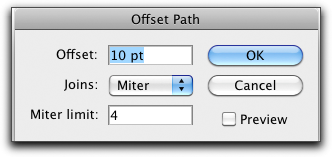
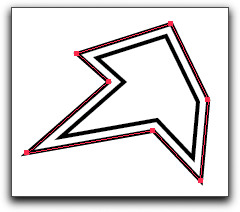
The default Offset is 10 pt and after clicking Preview, this is the result (see image below):
After setting the Offset to -7 (negative seven) for an inner outline – this is the result (see image below):
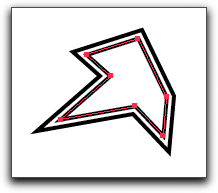
If the Joins edges needed to be sharper – the Miter limit could be increased. Round and Bevel are also available as choices for Joins (see images below):
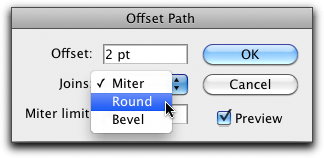
Below, Round was chosen for Joins: